FIELD MANUAL // 00
Before the Game
Creating lobbies, inviting players, filling seats with bots, and playing as a pseudonym
Everything in this chapter happens before the first turn: who’s at the table, what rules they play under, and how you present yourself to them.
Lobby visibility
When you create a lobby, you pick who can find it:
| Setting | Who can join |
|---|---|
| Open | anyone browsing the public list, until the seats fill |
| Unlisted | only someone with the share link; it’s not in the list and won’t show in searches |
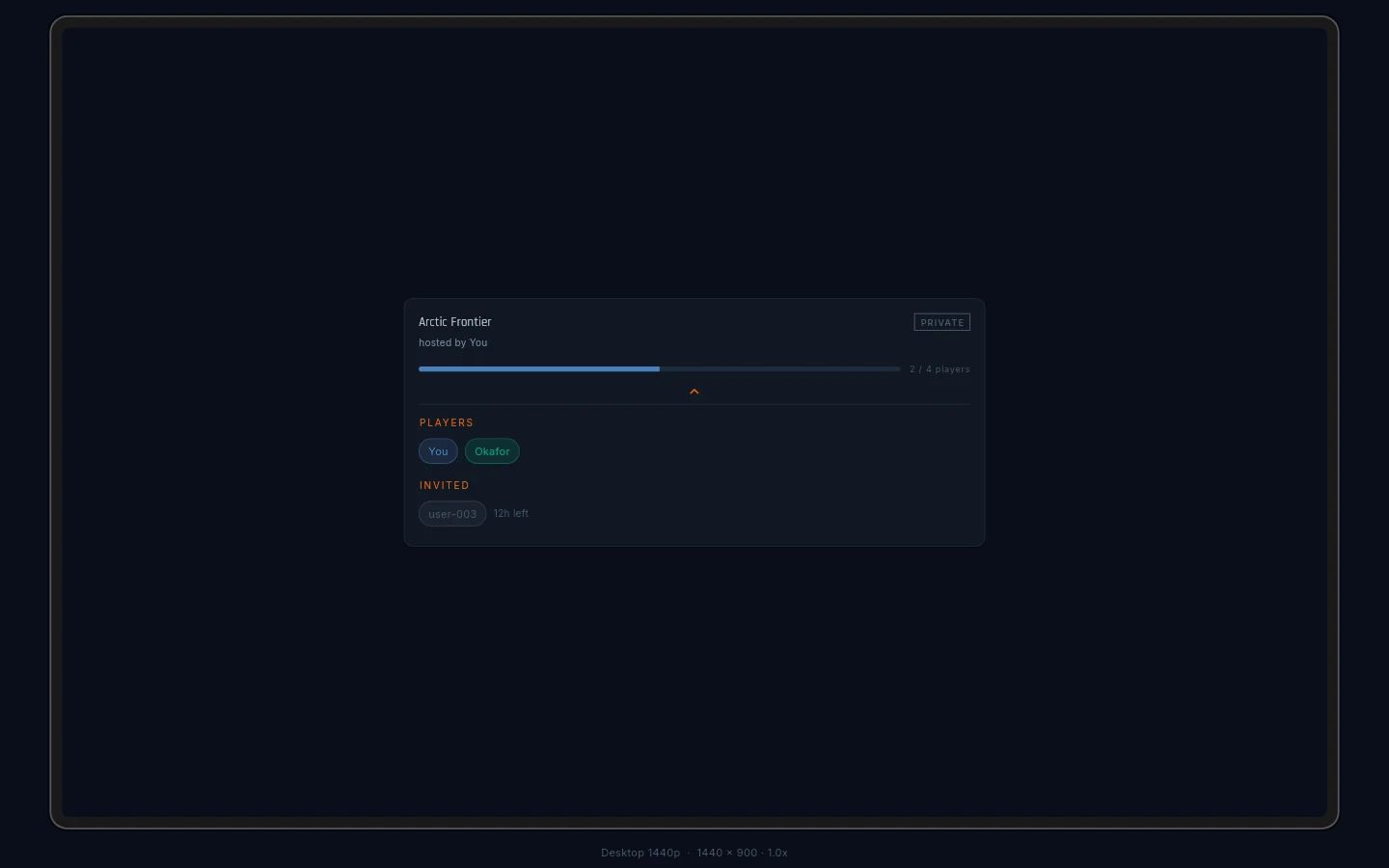
| Private | invite-only; even the share link won’t admit a stranger. Invite players from the lobby’s player panel |
You can change the setting from the owner menu until the game starts. After that, it’s frozen.
Invite links
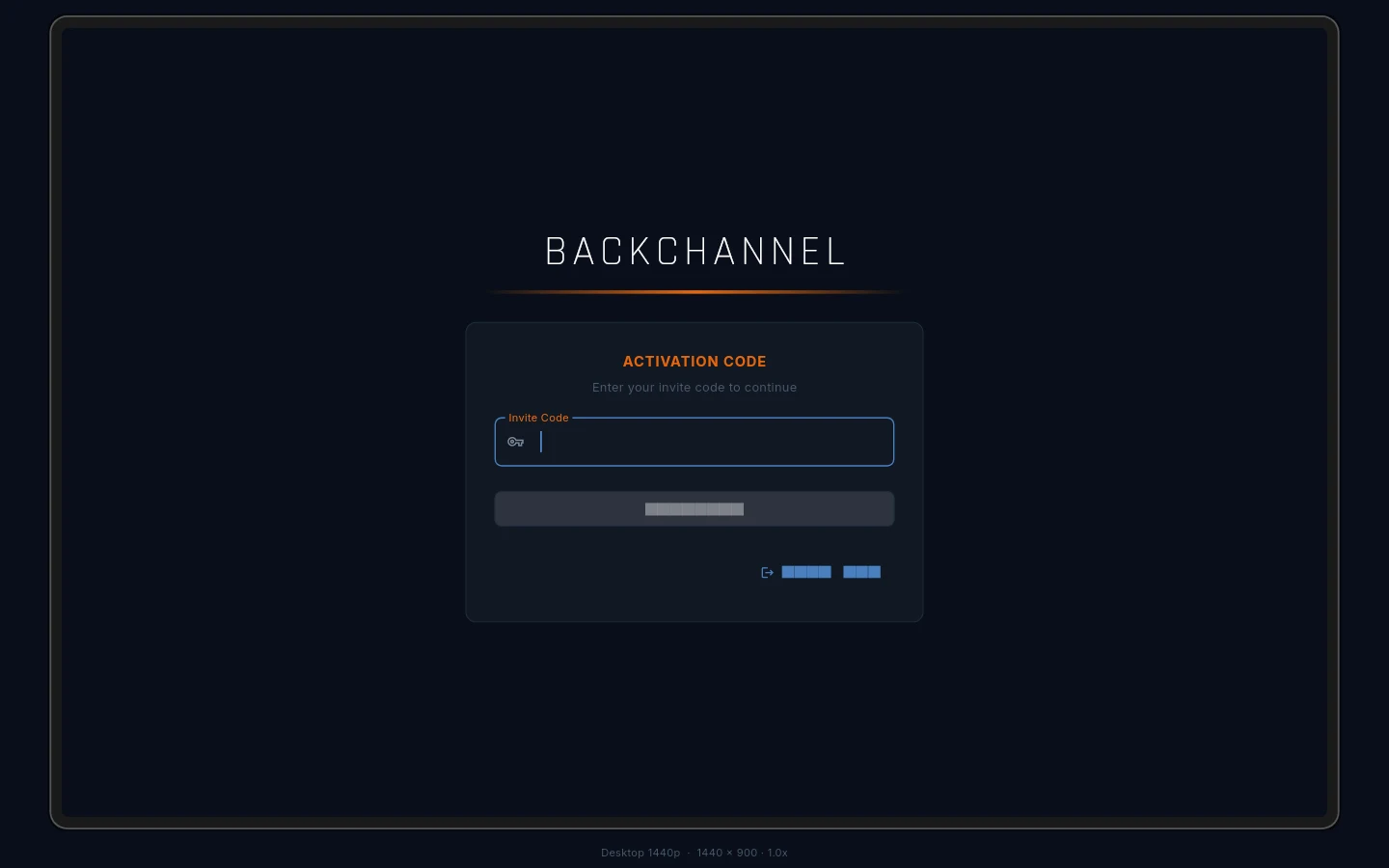
Every lobby has a share link. Open one while signed in and you land straight in the lobby. Open it before signing in and the invite waits for you, then applies once you’re in.
Owners of Open and Unlisted lobbies copy the link from the lobby header. A link to a Private lobby only works for someone already invited — a stray link is harmless. And a link sent to someone already in the lobby just takes them there, with no error.
Filling seats with bots
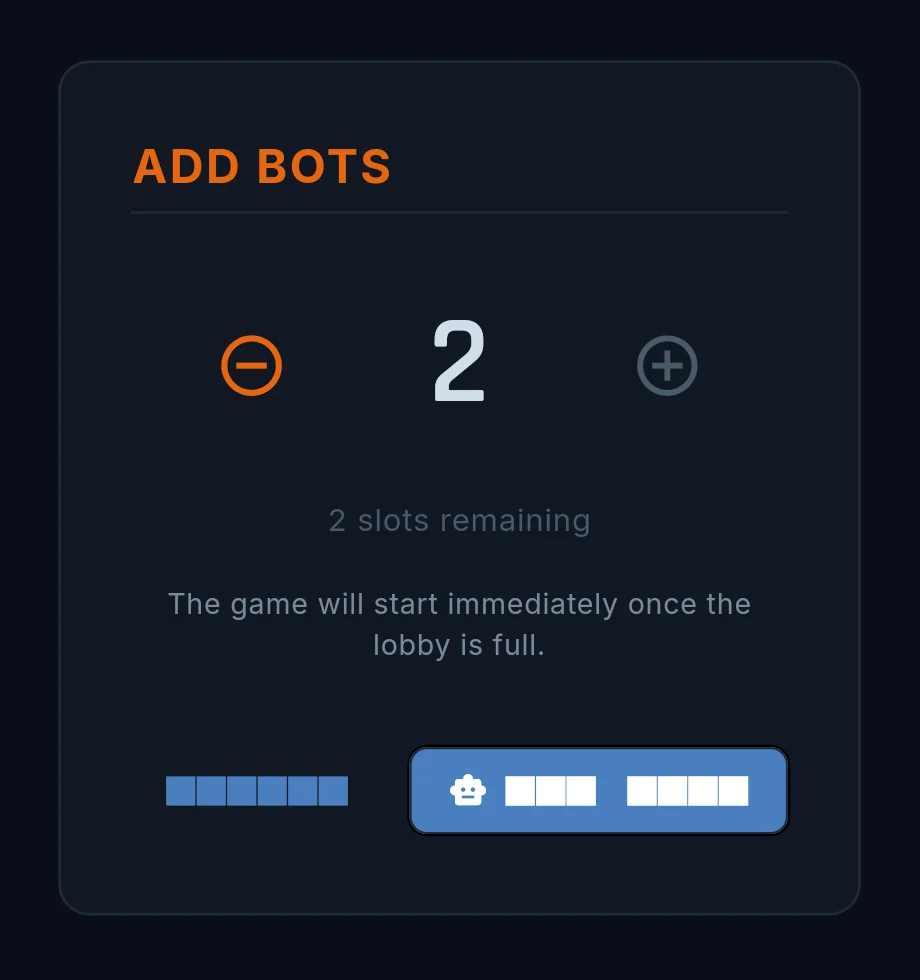
A lobby with Allow Bots on can seat bot players before the game starts. The owner opens the Add Bots dialog, picks how many, and the seats fill at once. Bots can be removed the same way until the game begins.
Bots play the real game — same turns, same cards, same negotiation. They are not a tutorial mode: they will attack you, propose deals, and play around your agreements.
Custom game settings
The map’s author chose a default for every game setting. As host, you can override everything in the table below — and anything you change shows in orange in the lobby, so the whole table can see what differs from the map before sitting down. One tap clears an override back to the default.
| Setting | What it does |
|---|---|
| Starting hand | which cards everyone opens with, both the pinned pair and the random rest. See Cards. |
| Hand limit | the most cards a player can hold (1–30, normally 15) |
| Turn timer | the per-turn time cap, normally 24 hours. The game is built for slow play; tighten it for a live session |
| Shared victory | the two-player truce ending, on or off (two-player lobbies only) |
| Fog of war | on (you see your land and its neighbours) or off (everyone sees everything) |
| Base deploy | the floor on troops per turn, before bonuses |
| Anonymous mode | play under pseudonyms — the next section |
| Allow bots | whether bot players can be seated |
Three rules are never configurable: the three-missed-turns forfeit, the card economy’s numbers, and the anti-collusion rule.
Anonymous Mode
Anonymous Mode separates your real name from your in-game identity, so you can play the full social game without broadcasting your name across every surface of it.
Who sees what:
- In the lobby — real names. You know who you’re sitting down with.
- In the game — pseudonyms everywhere: scoreboard, messages, deals, notifications.
- After the game — the history view shows both, side by side. Everyone learns who was who once the result is locked in.
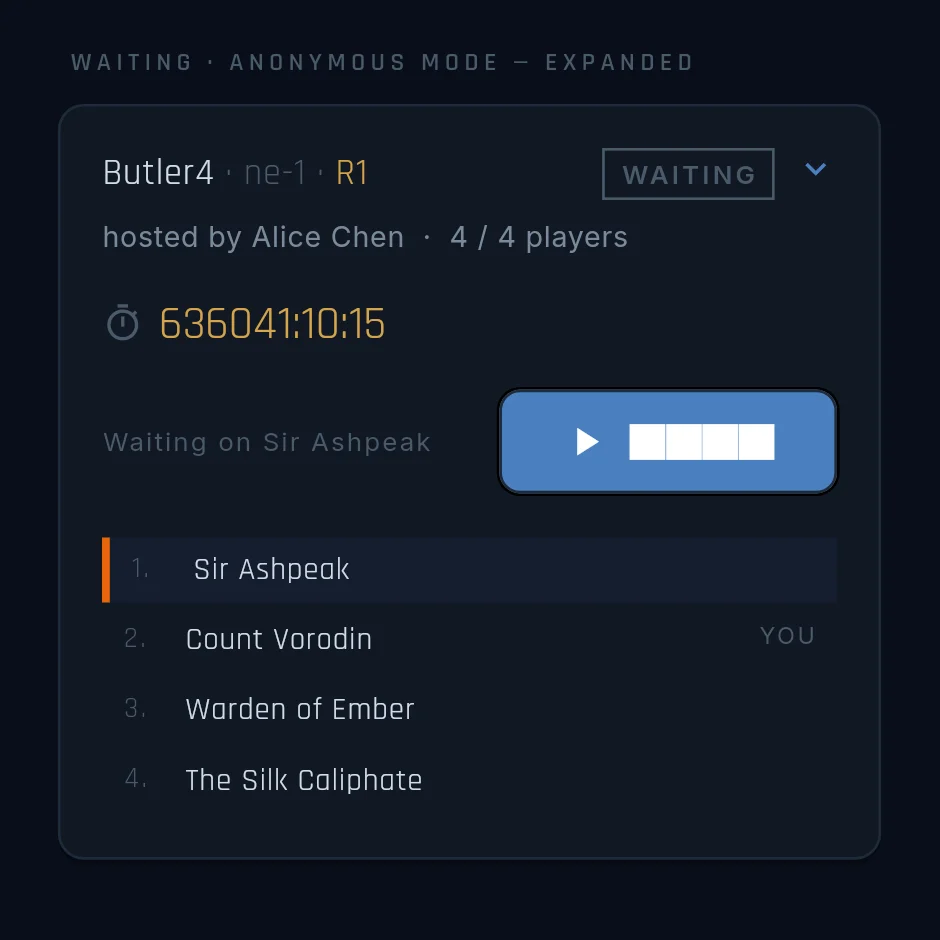
One small exception: on your home screen, your active game’s card shows the real host’s name in small print under the pseudonyms, so you can tell your games apart. The host was never secret — they made the lobby.
Choosing a mask
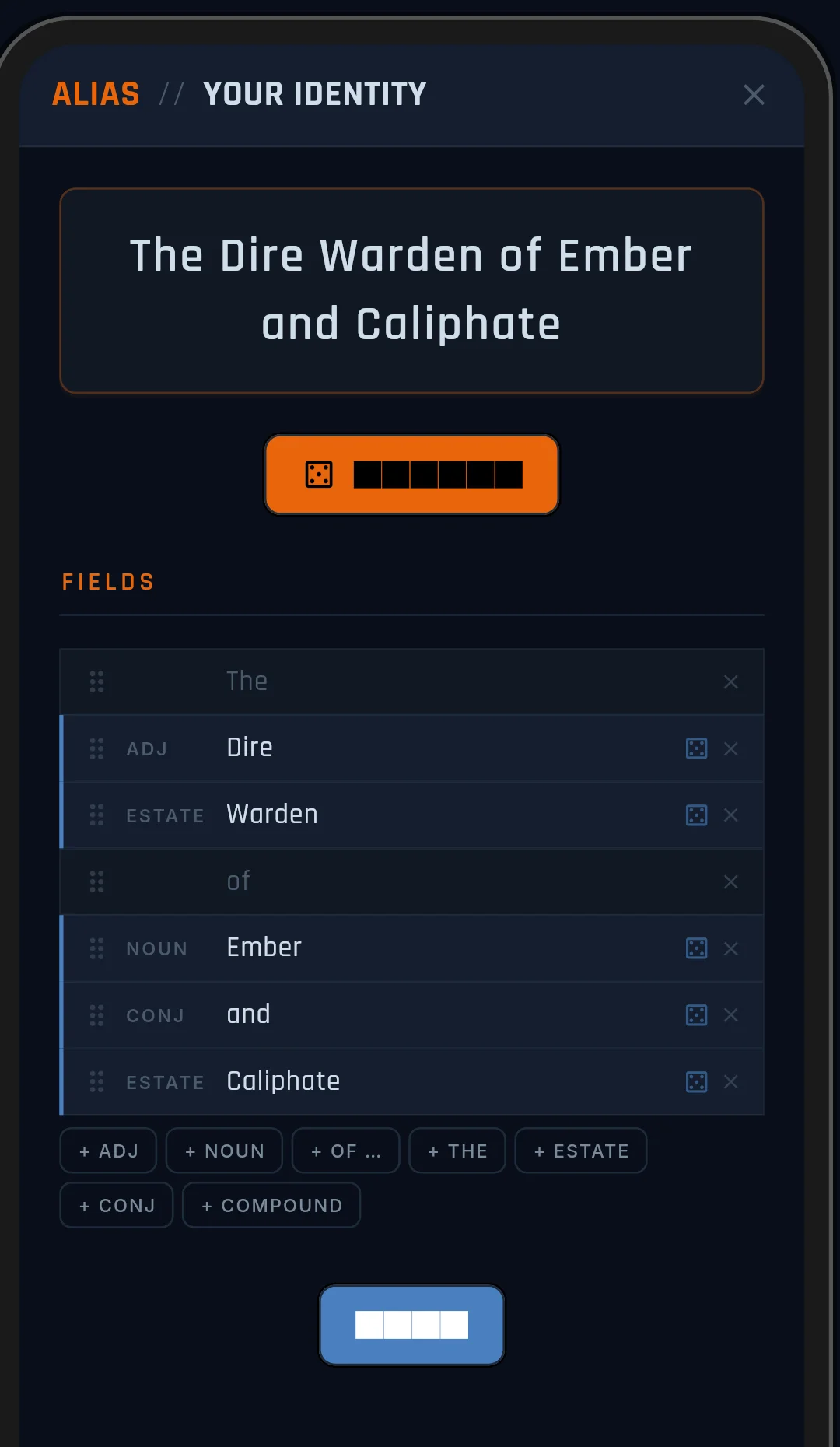
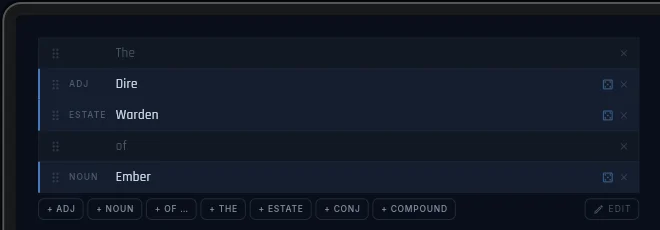
Joining an Anonymous Mode lobby opens the Choose Mask dialog. A mask is a compound name in three parts — a title (“Chancellor”, “Warden”), a front name, and a rear name. Reroll any part on its own and drag the parts to reorder them. The ESTATE button slips in an “of the …” style connector; CONJ adds a plain joining word. Random masks usually come out sounding like they belong in the game’s world.
You can change your mask freely in the lobby, and even into the game — until your first turn ends. The window exists so you can react to your seat colour and starting position; sometimes the right name for the purple player on the north border isn’t the one you picked in the lobby. After your first turn, the mask is frozen for the game.
Previewing a map
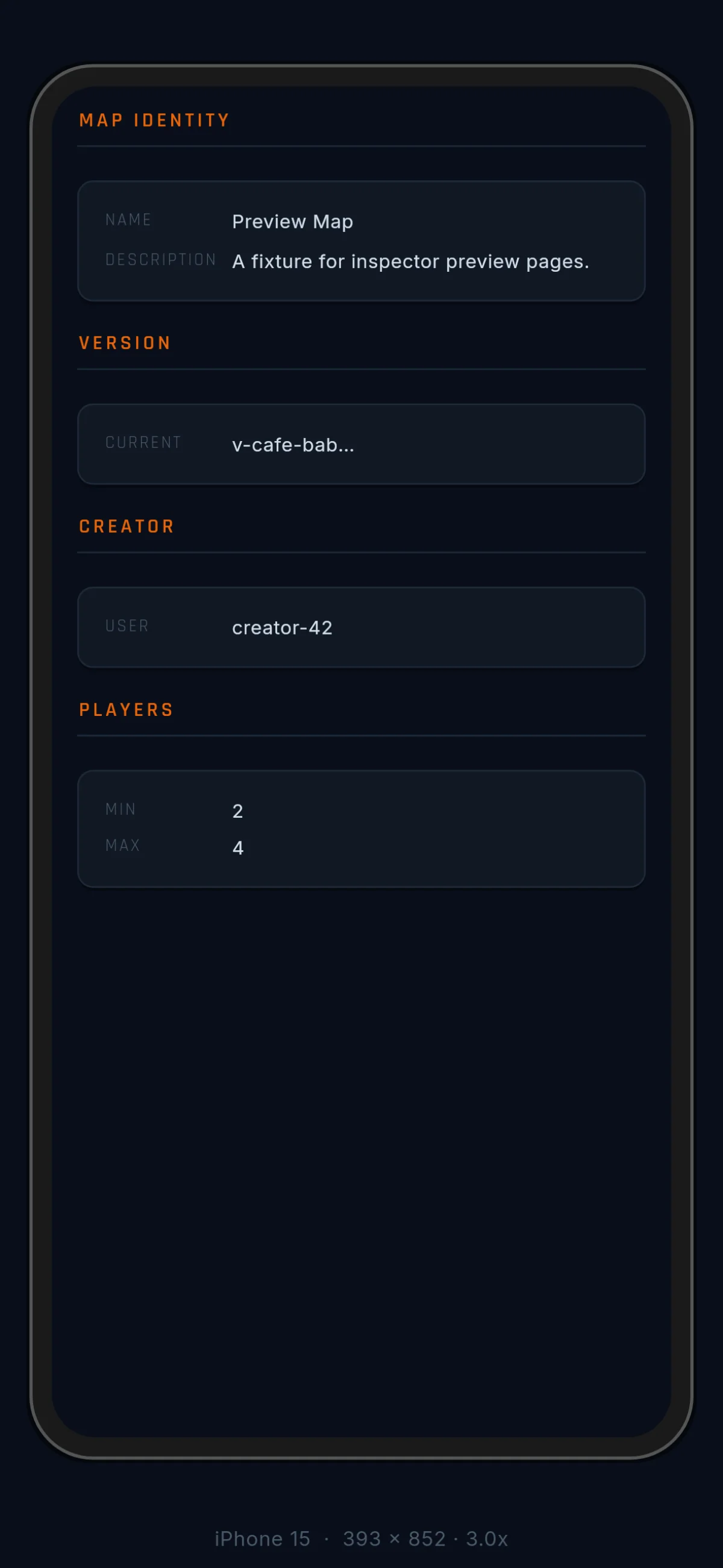
Before you take a seat, you can open the lobby’s map in a read-only viewer and see exactly what you’re getting into — territories, borders, bonus zones, starting areas.
From the map picker, tap the preview icon next to the selected map. Stock maps (made by Backchannel) carry an orange verified badge that can’t be faked by naming a map cleverly. Maps with authored win conditions are flagged in the directory too, so you can seek them out when you don’t just want a last-player-standing grind.
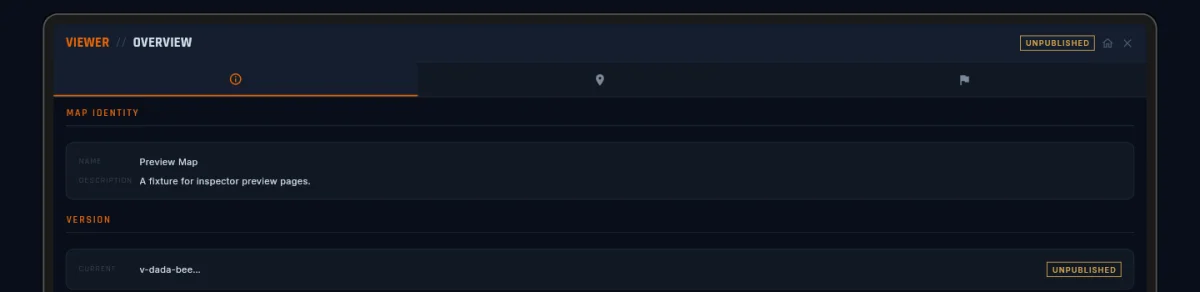
The viewer has three tabs:
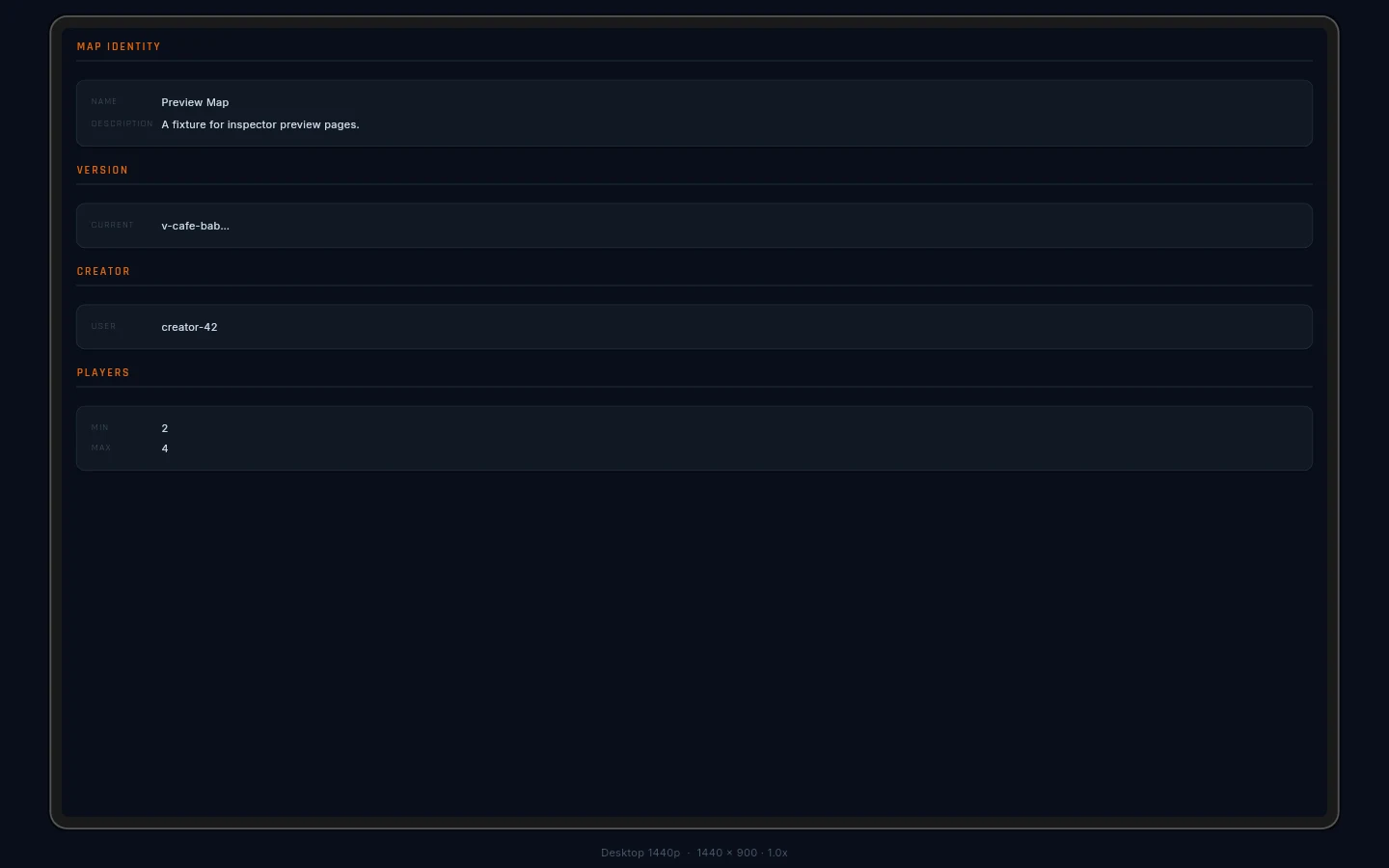
- Overview — the whole map, framed the way the author intended.
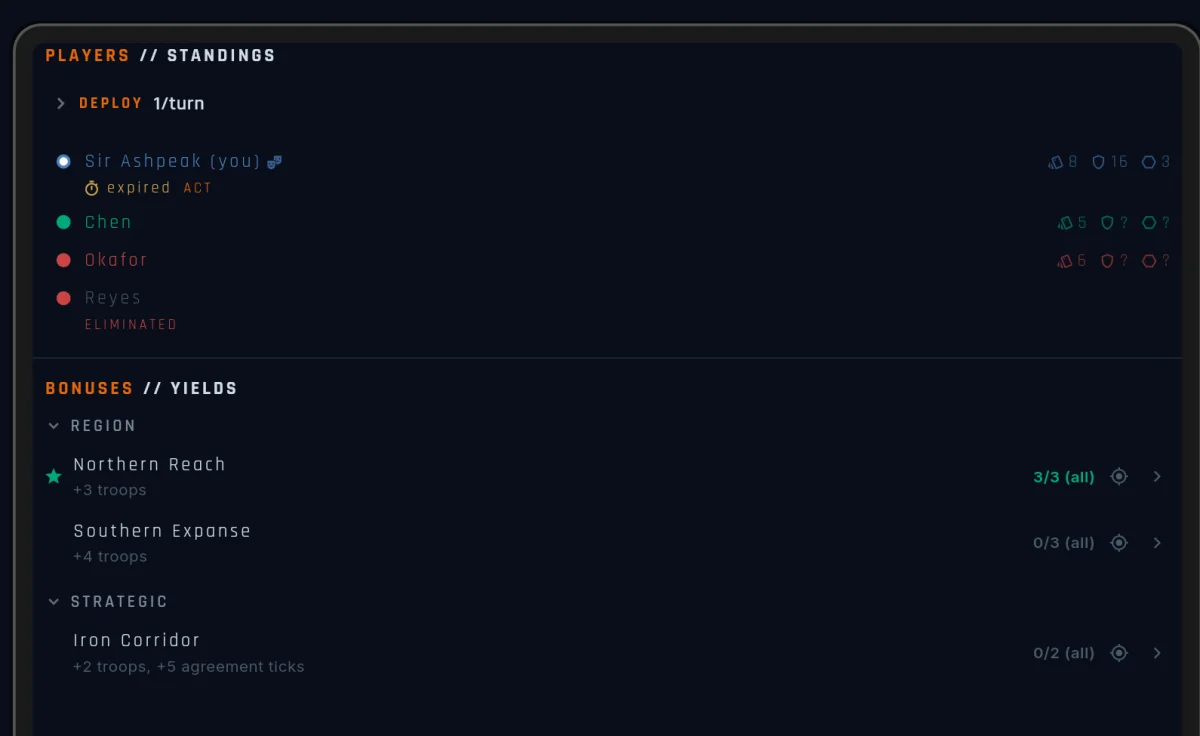
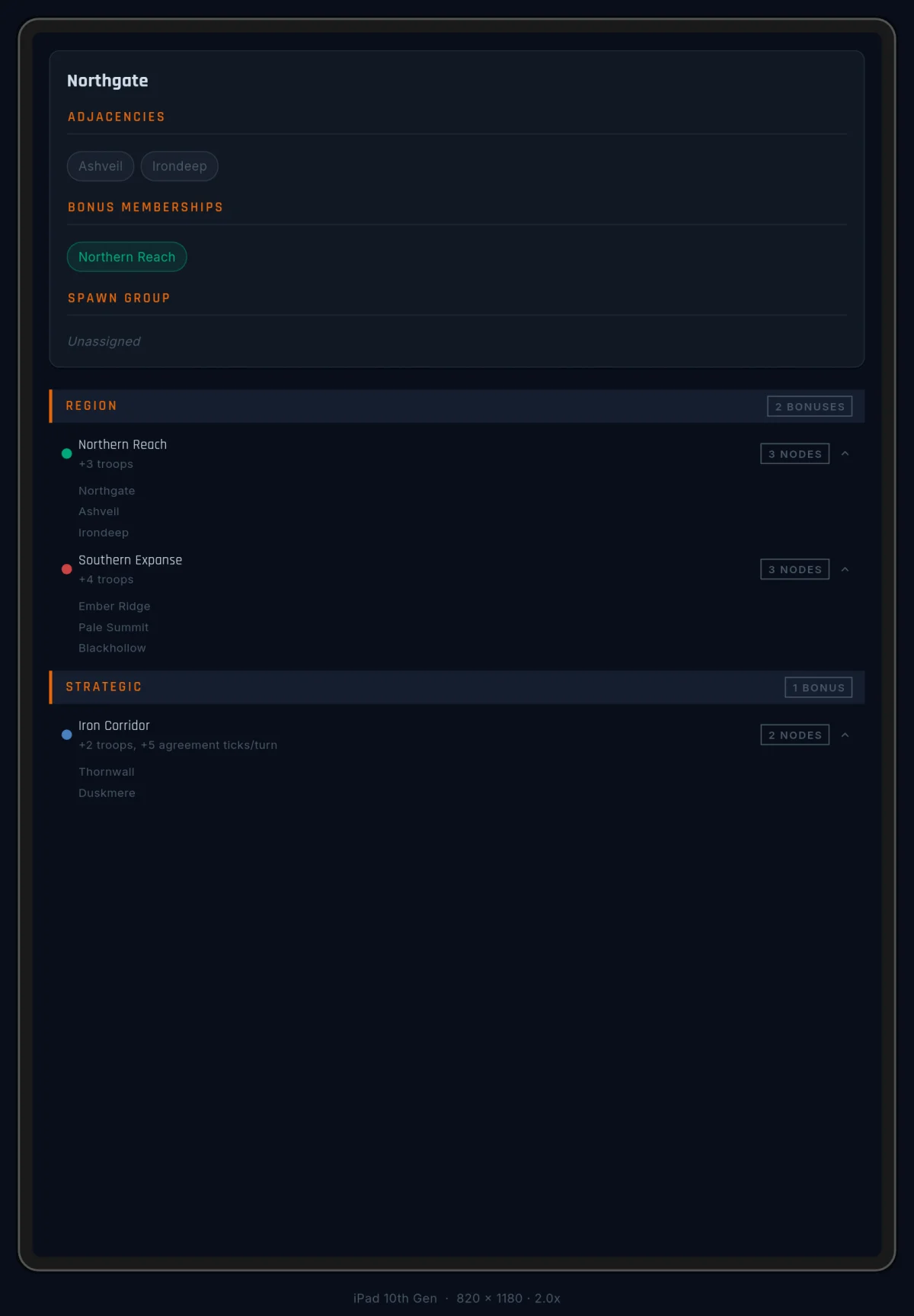
- Territories & Bonuses — tap any territory and the side panel fills with its borders, zones, and anything else in play.
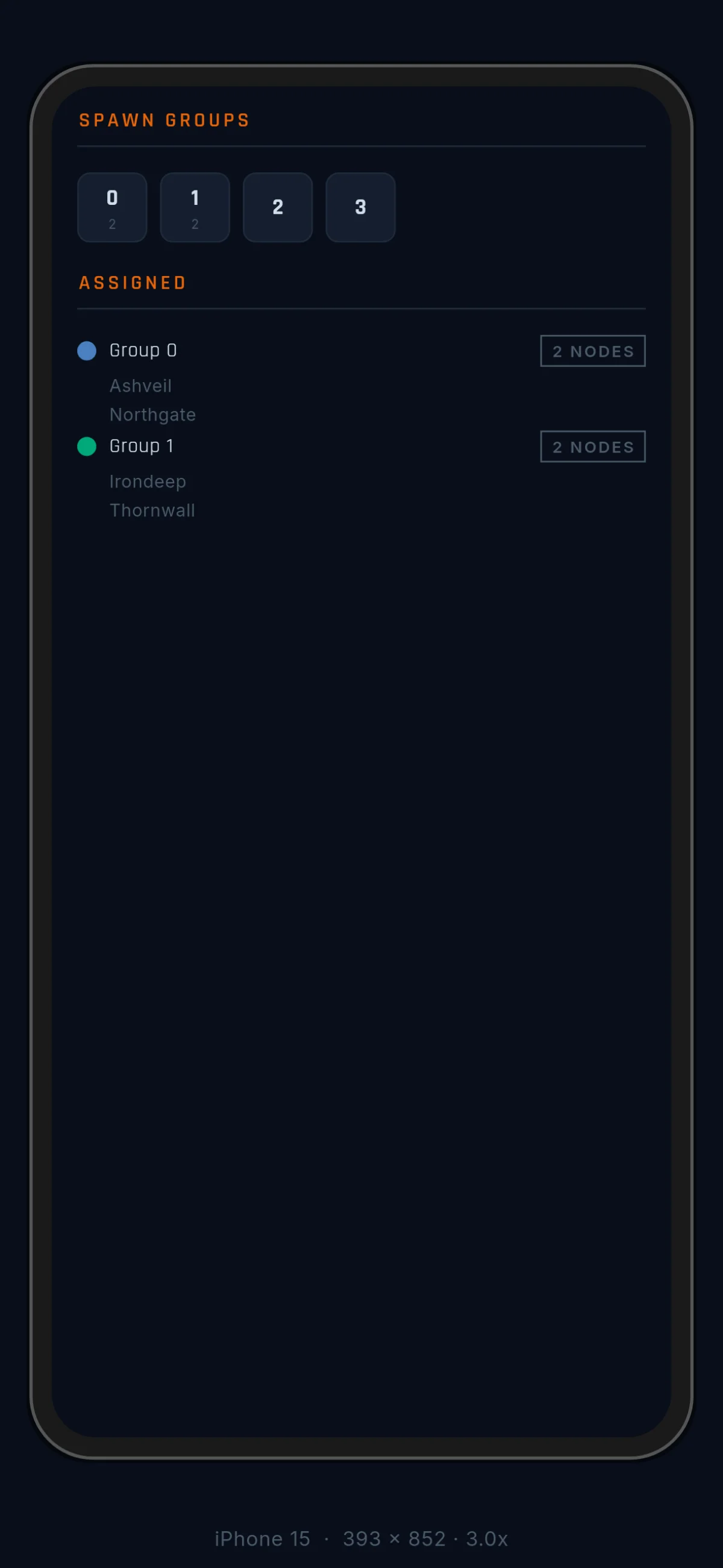
- Spawns — which starting areas exist and which territories belong to each. Good for guessing where you might begin.
The panel rows talk back to the map: tap a zone, a starting group, or a neighbour and the canvas flies there and rings it with the same orbit ring the game uses, with an INSPECT badge marking what’s focused.
Every view has a share link. Copy it from the panel header and hand a teammate a link straight to “this spawn group, this zone” — opening it lands directly in the viewer, no navigation needed.
A few practical notes:
- Player range. If the author declared “3–6 players”, the lobby form clamps to it — pick the map after typing 8 and the field quietly drops to 6 with a note.
- UNPUBLISHED badge. If you’re viewing someone’s draft (usually a shared link from its author), a badge in the panel header says so. You’re looking at work in progress, not the public version.
Before you start
A quick check before tapping START GAME:
- Visibility fits the crowd — Open for pickup games, Private for friends.
- The seats are right: bots where you want bots, humans where you want humans.
- Your overrides read the way you want. Orange marks everything you’ve changed from the map’s defaults.
- If identity matters to you, Anonymous Mode is on and your mask reads right.
Once the game starts, all of this freezes — except your mask, which stays editable until your first turn ends. The first thing each player sees is the start of their turn: the briefing that catches them up before they act.