FIELD MANUAL // 01
The Map
Territories, troops, borders, and what fog of war hides
This chapter covers the board itself: territories and the troops on them, the borders between them, how to look closely at any territory, and what fog of war lets you see.
Territories and troops
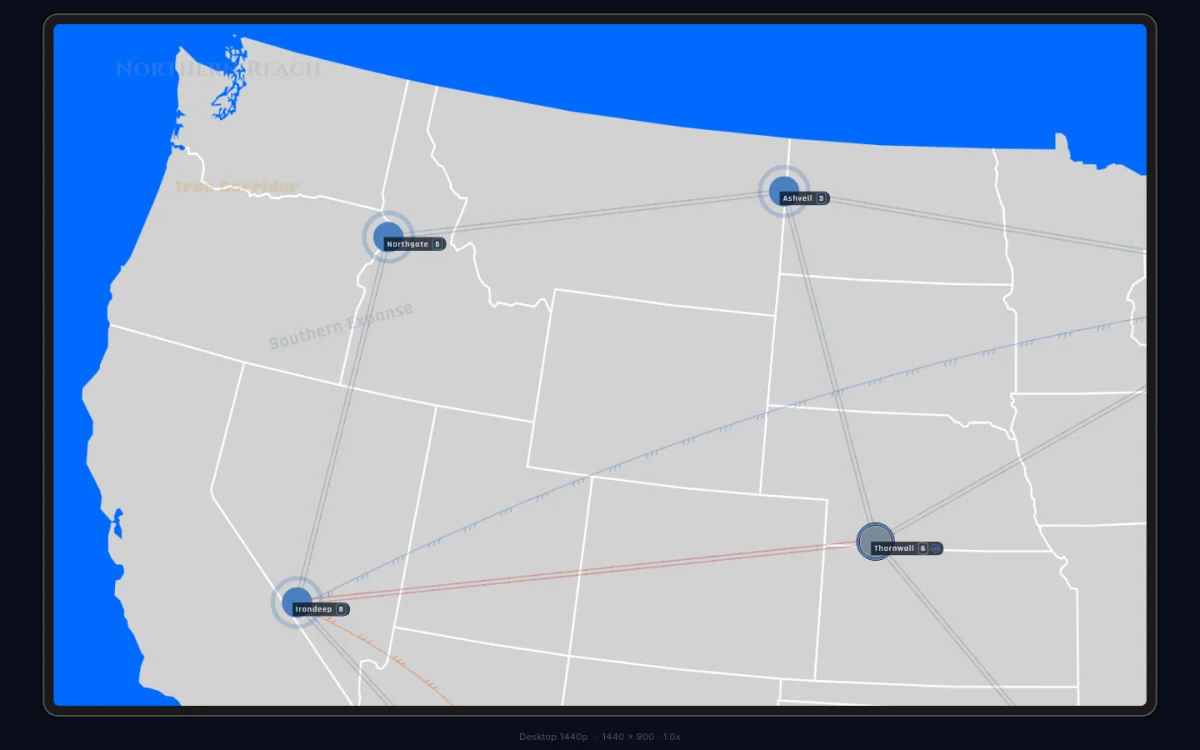
The map is divided into named territories, each held by one player at a time. Every territory shows a troop count on its label — the garrison defending it. Territories are colour-coded by owner, so you can read the balance of power at a glance.
When a player misses three turns in a row, they’re out of the game,
but their territories stay. They turn neutral grey, the owner label
reads Abandoned, and the garrison stays put. Abandoned
territories can still be attacked; take one and it joins your colour.
See Winning for the rest of what elimination does.
Borders
Territories connect through borders, and the border decides where troops can move and fight. There are three kinds, each drawn its own way:
| Border | What it allows | How it looks |
|---|---|---|
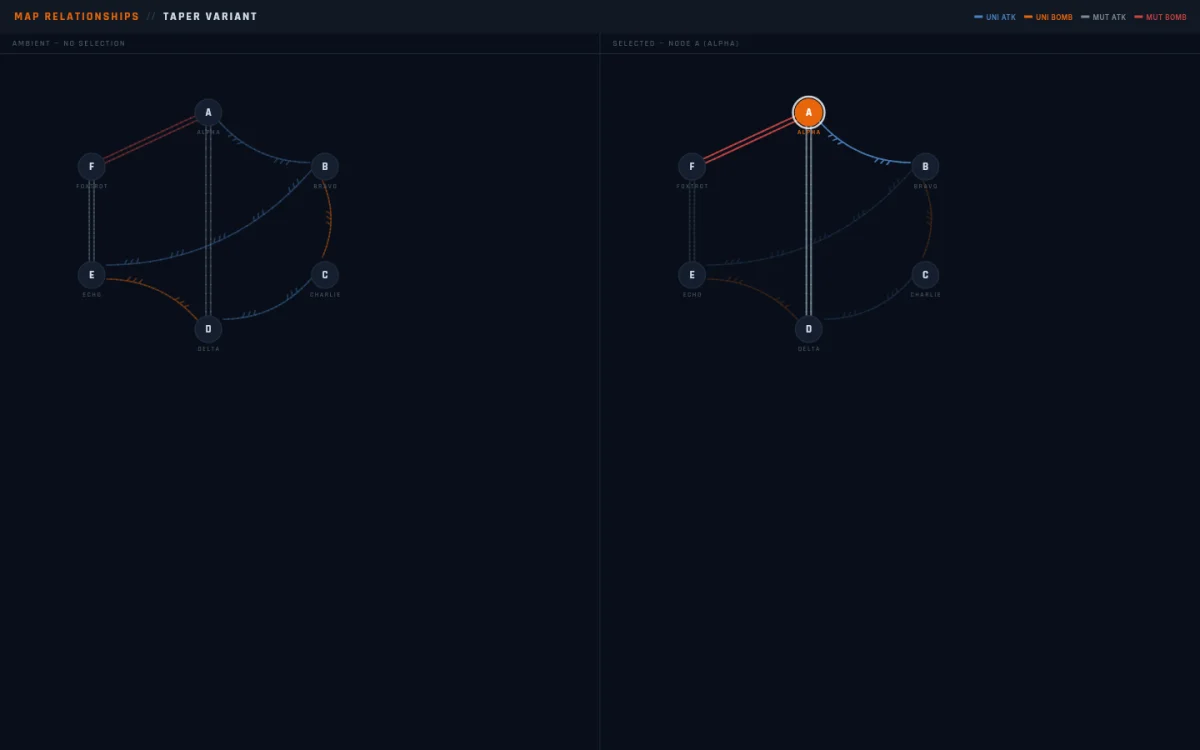
| Mutual | movement and attacks both ways | two parallel lines |
| One-way | attacks in one direction only | three half-chevrons pointing at the defender |
| Bombardment | ranged attacks, no troop movement | its own marked path |
Most borders on most maps are mutual. Across a one-way border you can strike, but the defender can’t hit back along the same path. A bombardment path lets you deal damage from a distance without ever occupying the target.
Border lines run straight unless they have to bend around a territory in the way. A curve means nothing — read the chevrons, not the bend.
Connection lines fade and brighten as you tap around the map. A line glows when you select a territory at either end, and sits dim the rest of the time. The colours never change — only how strongly a line shows. The one exception is when a map overlay is open: nothing fades, and every line shows at full strength so you can see the whole web at once.
Inspecting a territory
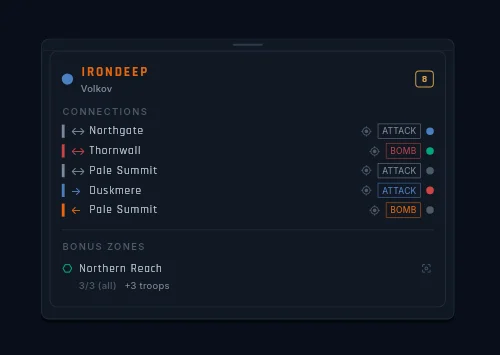
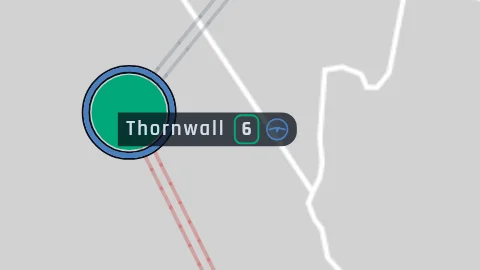
Looking closely at a territory is a separate gesture from acting on it. Long-press a territory on touch, or right-click on desktop, and a read-only card opens right on the map. Opening it during your turn never starts an attack or a move — looking is safe.
The card shows:
- Who owns it. Always the player’s in-game name (or their pseudonym in Anonymous Mode) — never an internal handle.
- The garrison. The live troop count.
- Its neighbours. Each one with a small icon — tap a neighbour to inspect it instead, without closing the card.
- Its bonus zones. Every zone the territory
belongs to, each with a badge showing how many of the zone’s
territories you hold:
3/5 (all)for a hold-everything zone,3/5 (min 3)for a hold-at-least zone, a bare2/6for a zone that pays per territory — with what it pays underneath.
Tap a different territory while the card is open and it switches target instead of closing. Close it with the X, by tapping empty map, or by opening anything else. Long zone names scroll sideways inside their rows rather than getting cut off; if your device is set to reduce motion, they hold still and show the full name on a long-press.
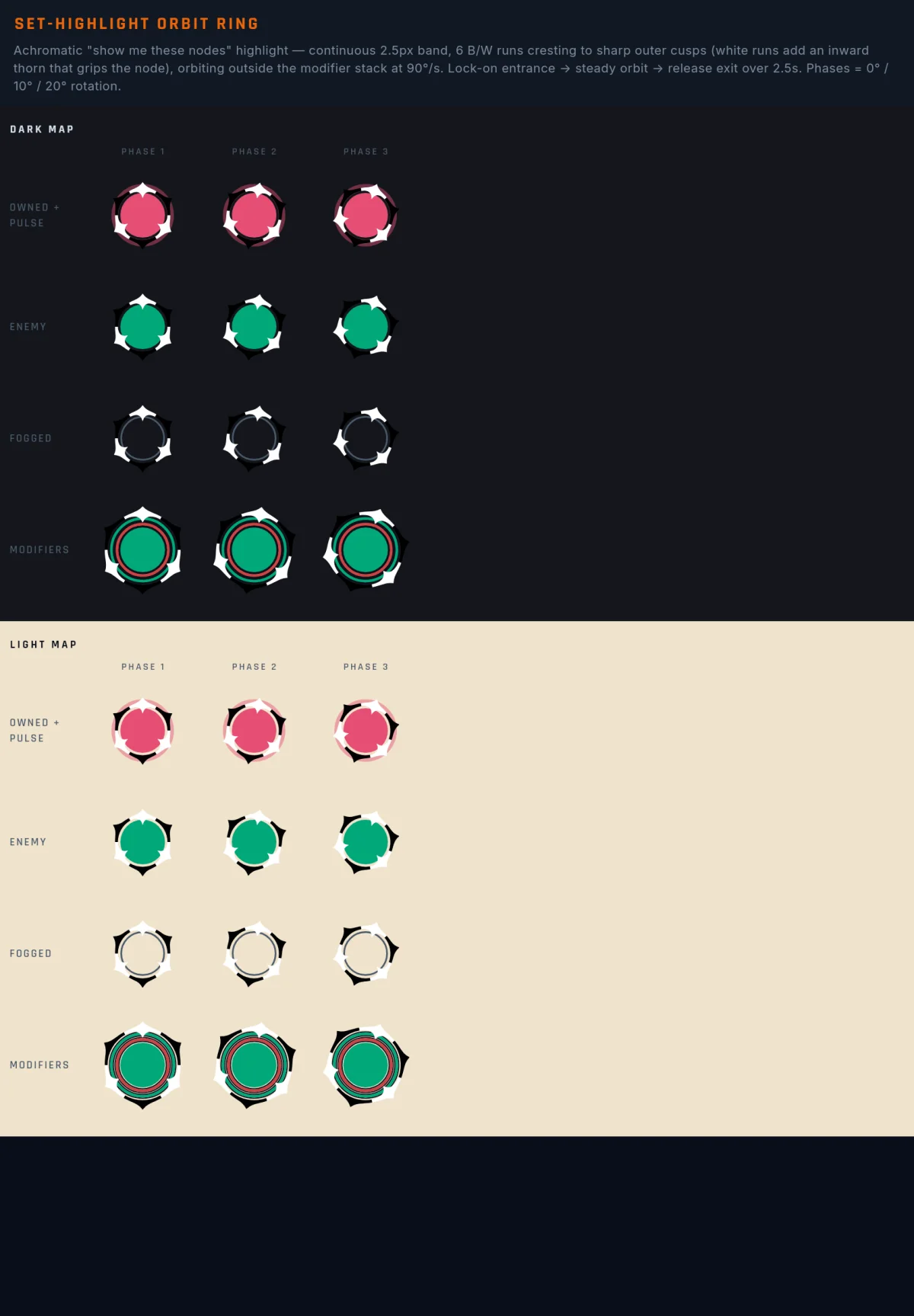
Each bonus row also carries a small ping icon. Tap it and every territory in that zone lights up with the orbit ring while the camera frames them. The same icon appears on the scoreboard’s objective rows and does the same thing there.
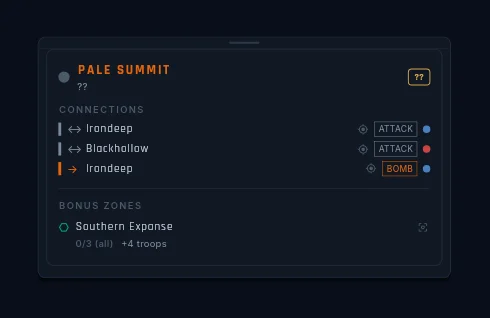
If you inspect a territory you can’t see (say, from a link in a
message or the event log), the owner and troop count both read ??.
You get the shape and the name; the fog keeps the rest.
Getting around
Beyond pinching and dragging, three things move the camera for you:
- Double-tap zooms in on the spot you tapped. Handy for diving into a crowded corner.
- Links from panels. Tap a territory link anywhere (the scoreboard, a message, the event log) and the camera flies there and centres it in the space the panels leave free.
- “Show me” pings. Small icons on bonus rows, objective rows, and player names. Tap one and the camera frames every territory the thing refers to — and stays there. There’s no snap back; the answer to “where is that?” becomes your new view.
While the camera moves, the target territories light up with the orbit ring — a ring of alternating black-and-white spikes that circles each one for a couple of seconds, then fades. The ring is never coloured, on purpose: a “show me” answer should never look like ownership. Tap the same link again and the ring restarts.
Map overlays
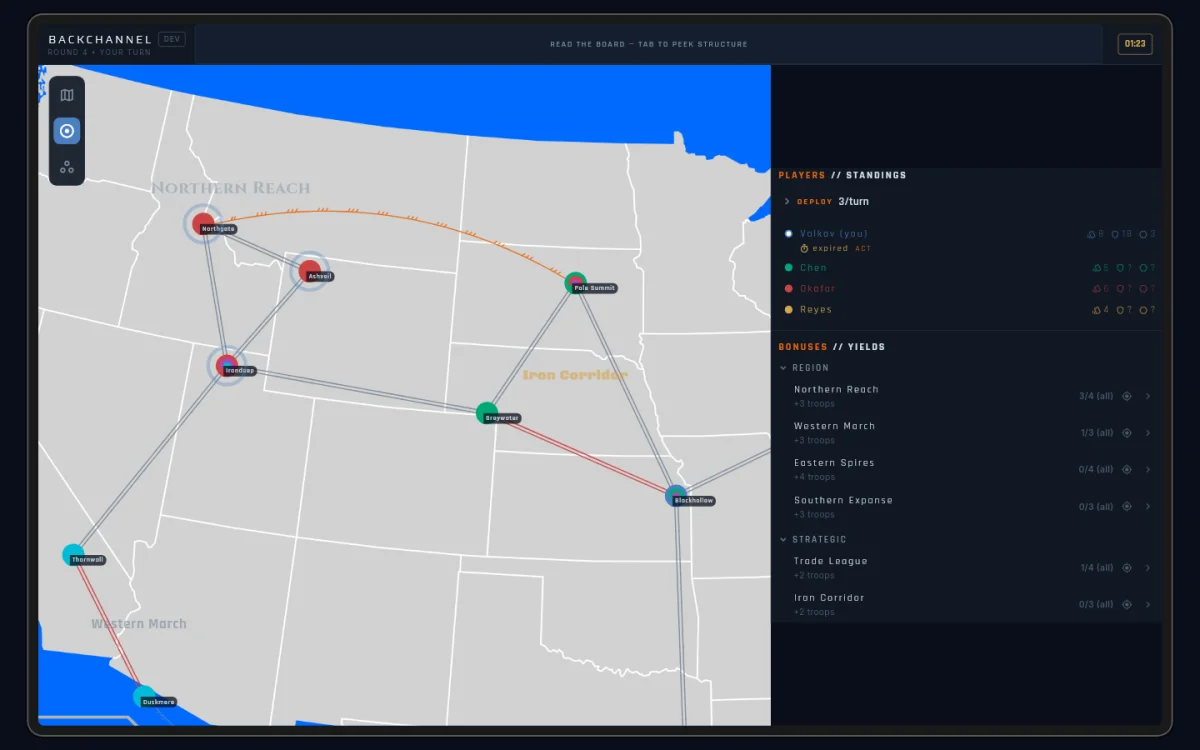
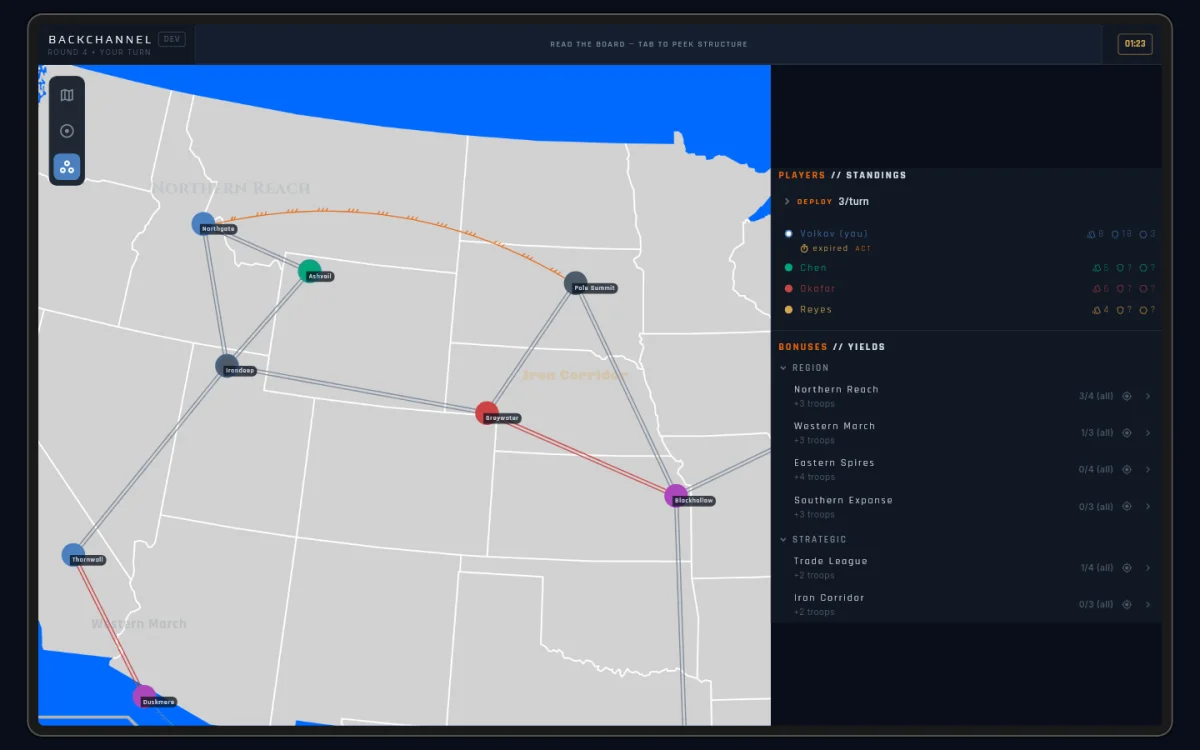
A small column of three icons floats on the map — top-left on desktop, right edge on phone: Board, Bonuses, and Spawns. Tap one and the whole board swaps to that view with a quick crossfade. A name pill slides out beside the icon to confirm the switch, then tucks away.
- Board is the live game — owners, garrisons, fog.
- Bonuses draws a ring on each territory for every bonus zone it belongs to, plus the zone labels — the same look the map editor uses.
- Spawns colours each territory by spawn group — the sets of territories players can start the game in.
The Bonuses and Spawns views ignore fog. Zone and spawn membership is public map information, so these views paint every territory — even ones the fog hides on the Board view. Your own territories keep their owner-coloured pulse in every view, so you never lose your bearings.
Everything still works with an overlay open: long-press inspect works
on every painted territory (fogged ones open the ?? card), “show me”
pings draw their orbit rings on top, and on phone the icon rail floats
above an open Scores or Log sheet so you can flip views without
closing anything.
Fog of war
By default you see only the territories you own and their immediate neighbours. Past that border everything is dark: no troop counts, no owners, no status markers. You are working with limited information at all times.
You can buy more sight, but never get it free:
- A Ceasefire shows you your partner’s territories while the truce runs (and shows them yours).
- Covert Support gives the sender one look at the recipient’s card hand.
- The scouting cards, Infiltrate and Recon, lift the fog around a target territory for a while — and can reveal routes the map otherwise keeps hidden. See the Card Reference.
There’s also a share toggle for handing your map vision to another player directly — covered in Negotiation.
Fog reaches the scoreboard too. When a map author keeps an objective’s progress private, other players don’t see your progress against it at all — no greyed row, no redacted name, just nothing. The same fog that hides a garrison hides a private objective. See Winning.
Fog of war is on by default. A game host can turn it off in custom game settings for a full-information game.